❇️ What's New
We've streamlined the loan application process to make it faster and easier for you to get pre-approved. Here's what you need to know.
- Assets is now its own section (for entering information and also linking documentation)
- There will be a few required tasks/to-dos to complete or upload before being able to submit a loan application for a verified pre-approval
- There is a new tracker for the three sections of the loan application that exists at the top of your "Tasks" page - and once the required items are complete, the "Submit Application" button is accessible
❇️ Before You Submit Your Application
Before submitting your loan application for pre-approval, you'll need to complete three main sections:
1. Complete Loan Application Questions
Answer all required questions about your employment, income, and housing situation.
- Fill out all fields marked with an asterisk (*)
- Review your information for accuracy
- Save your progress as you go
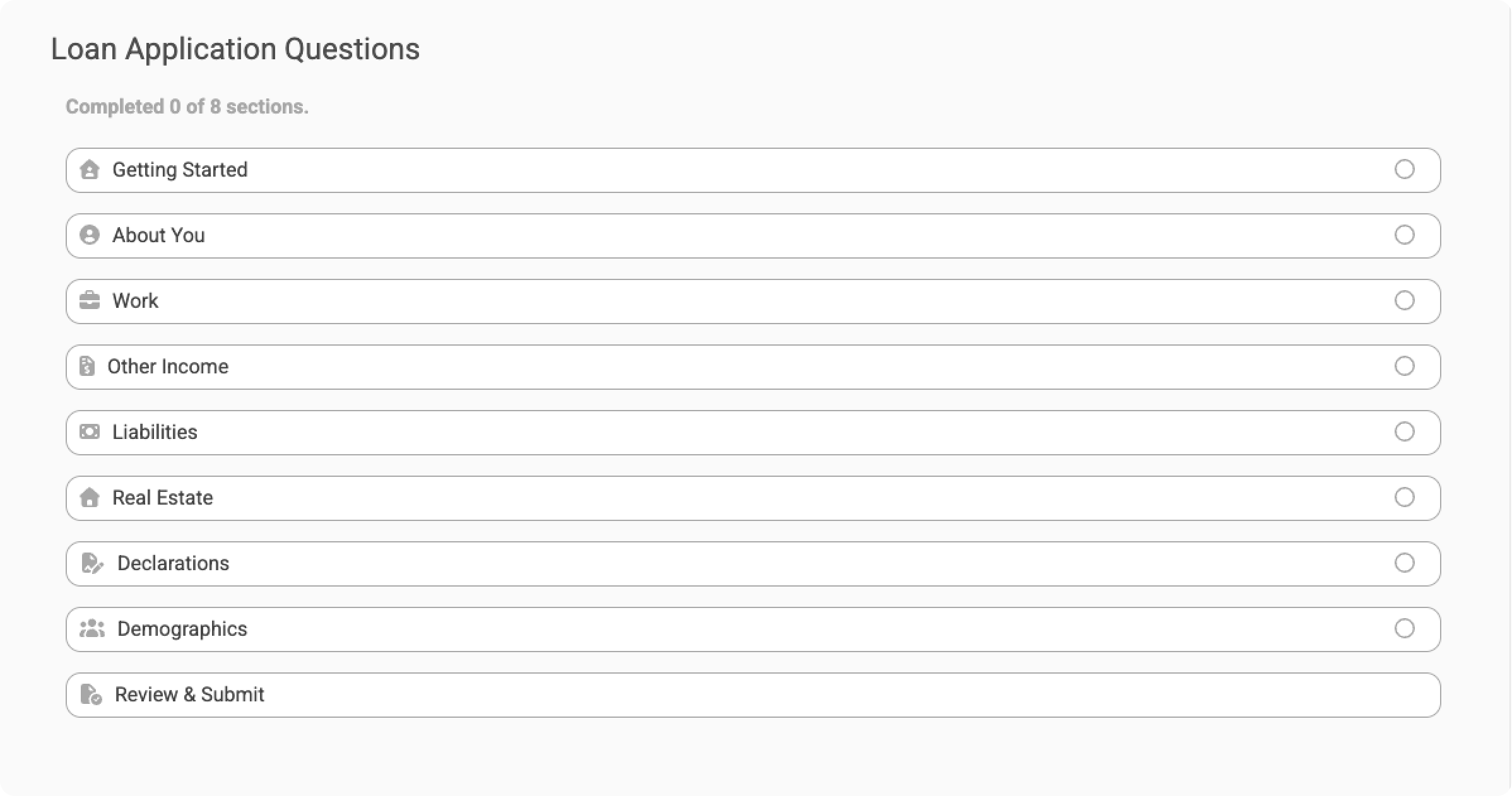
Loan application questions and sections to complete
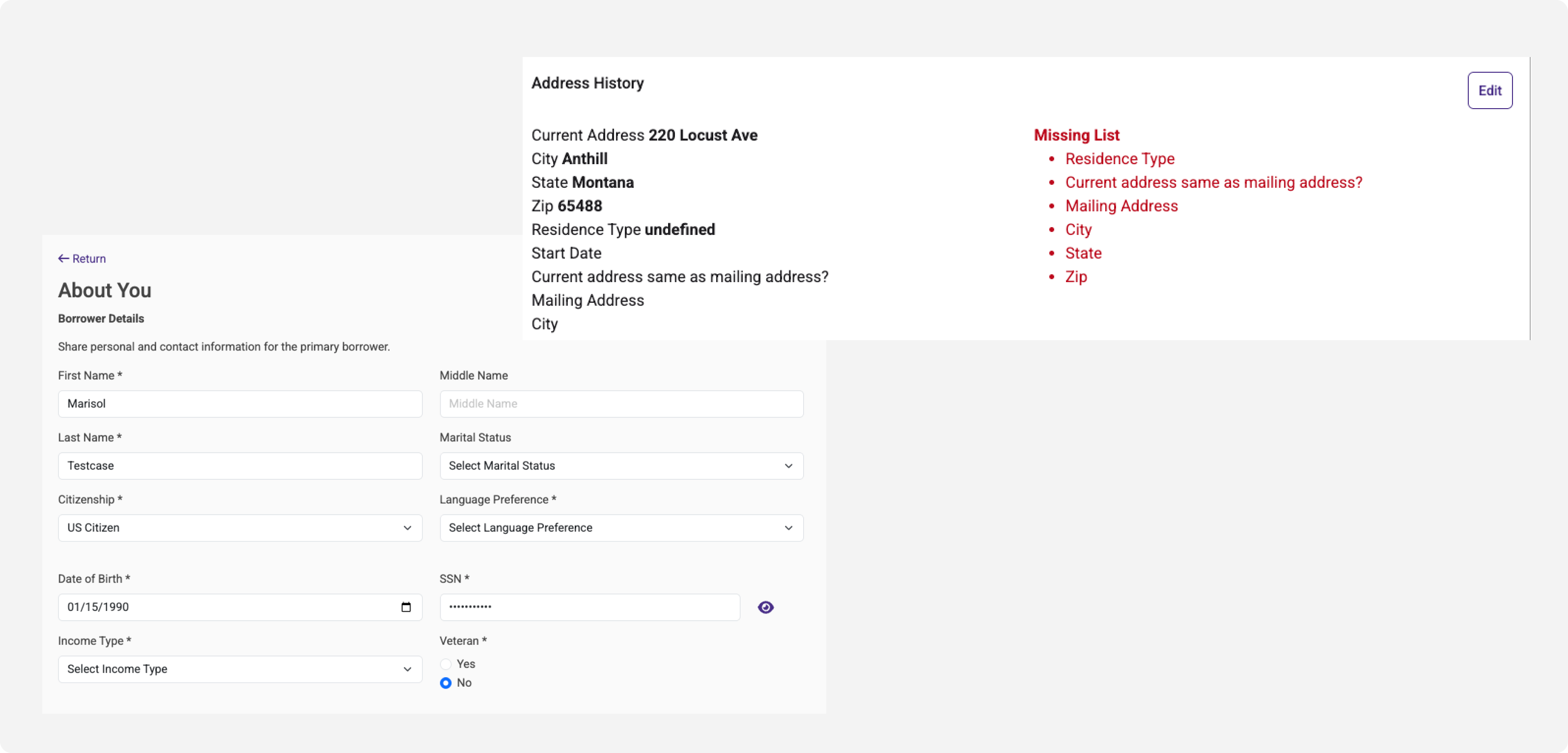
Examples of sections with required information, or missing information that is needed to save and submit.
2. Review and Complete Assets Section
You must add at least ONE asset account to submit your application. Ideally, add all accounts where you have funds for your down payment and closing costs.
Option 1: Connect Your Bank Account (Recommended)
Link your bank accounts securely and instantly using Plaid.
Why connect your accounts?
- Instant verification - no waiting for document review
- Secure - bank-level encryption protects your information
- Easy - takes less than 60 seconds
- Accurate - eliminates errors from manual entry
How to connect:
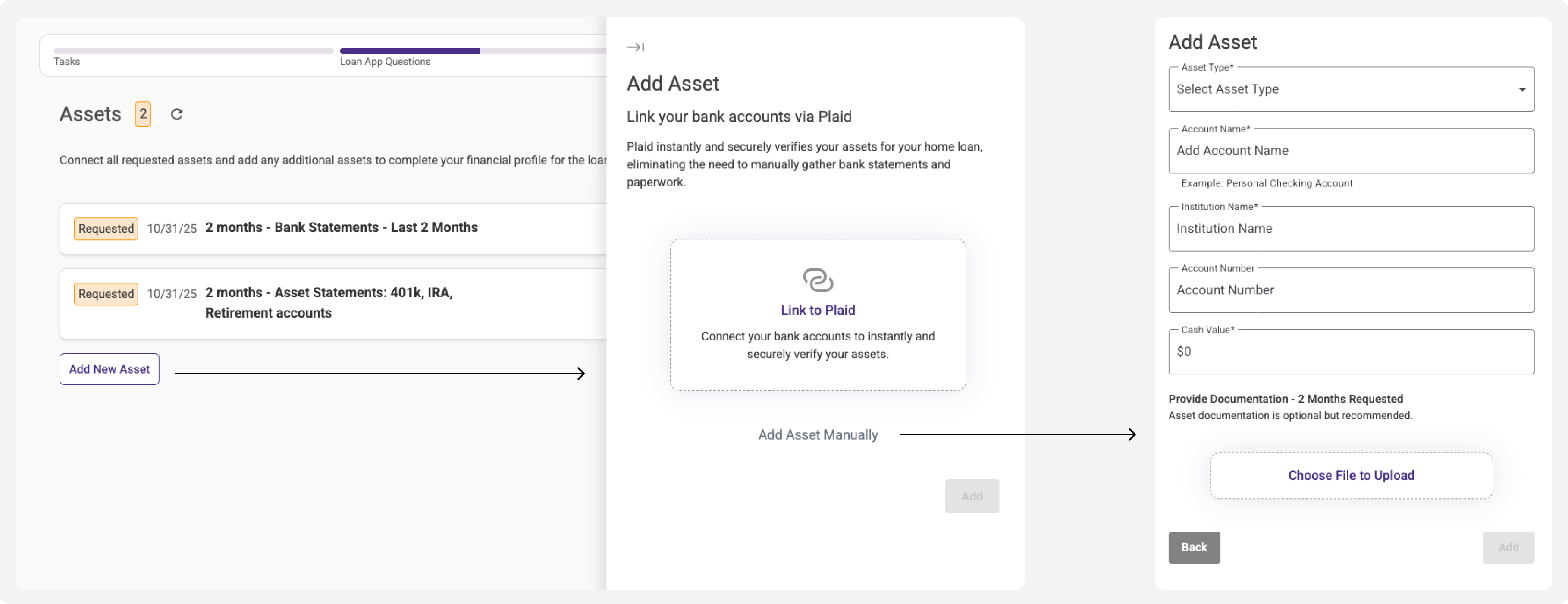
- Click the "Add Asset" button within one of your requested asset accounts, or add a new asset via the "Add New Asset" button
- Click "Link to Plaid," and a window will open, prompting you to log in
- Select the bank/institution, and then the specific accounts to connect
- Once you are done, the account will sync with either the asset you clicked from, or create a new asset
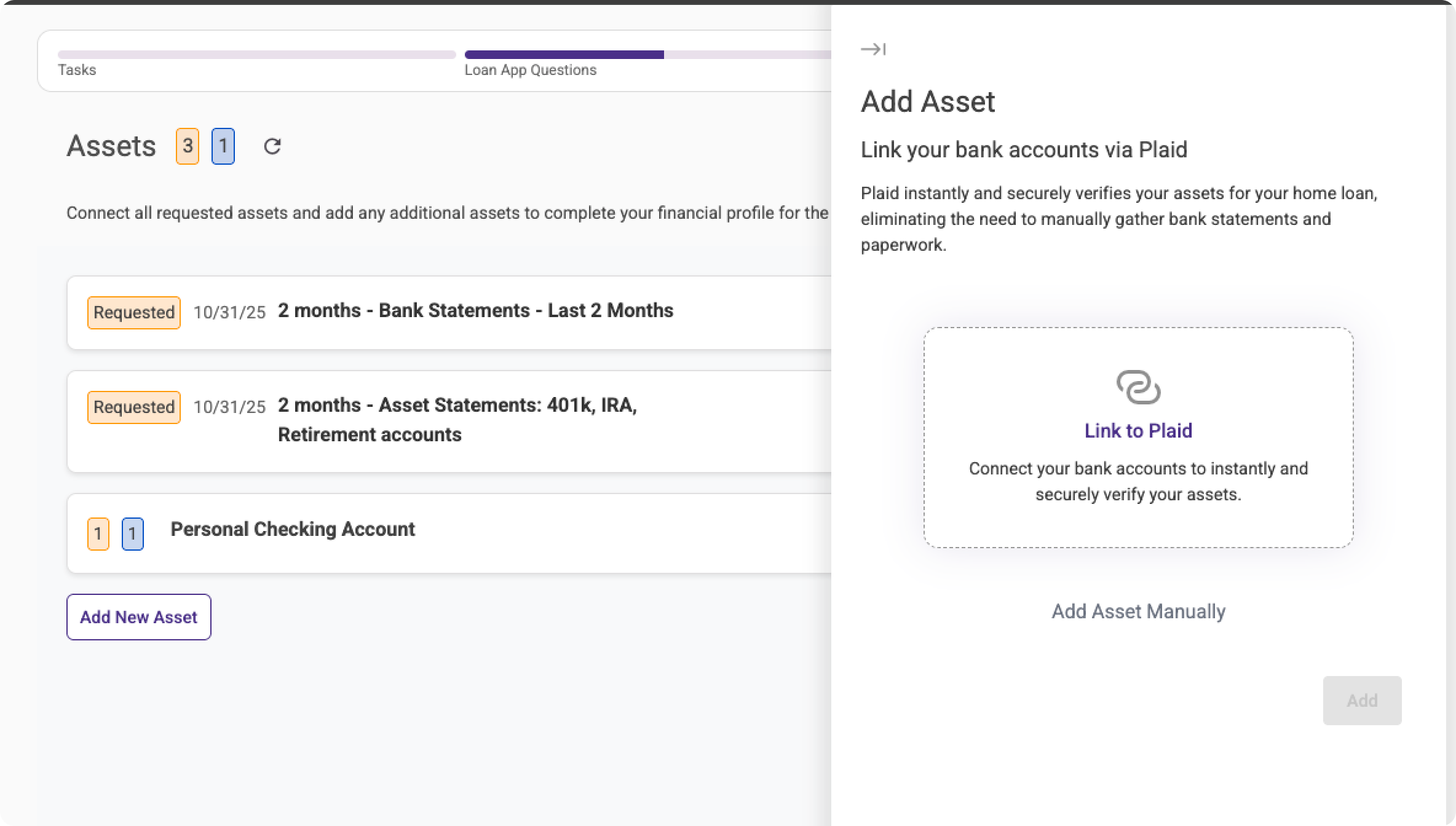
View of "Add Asset" when clicking on one of the requested assets above.
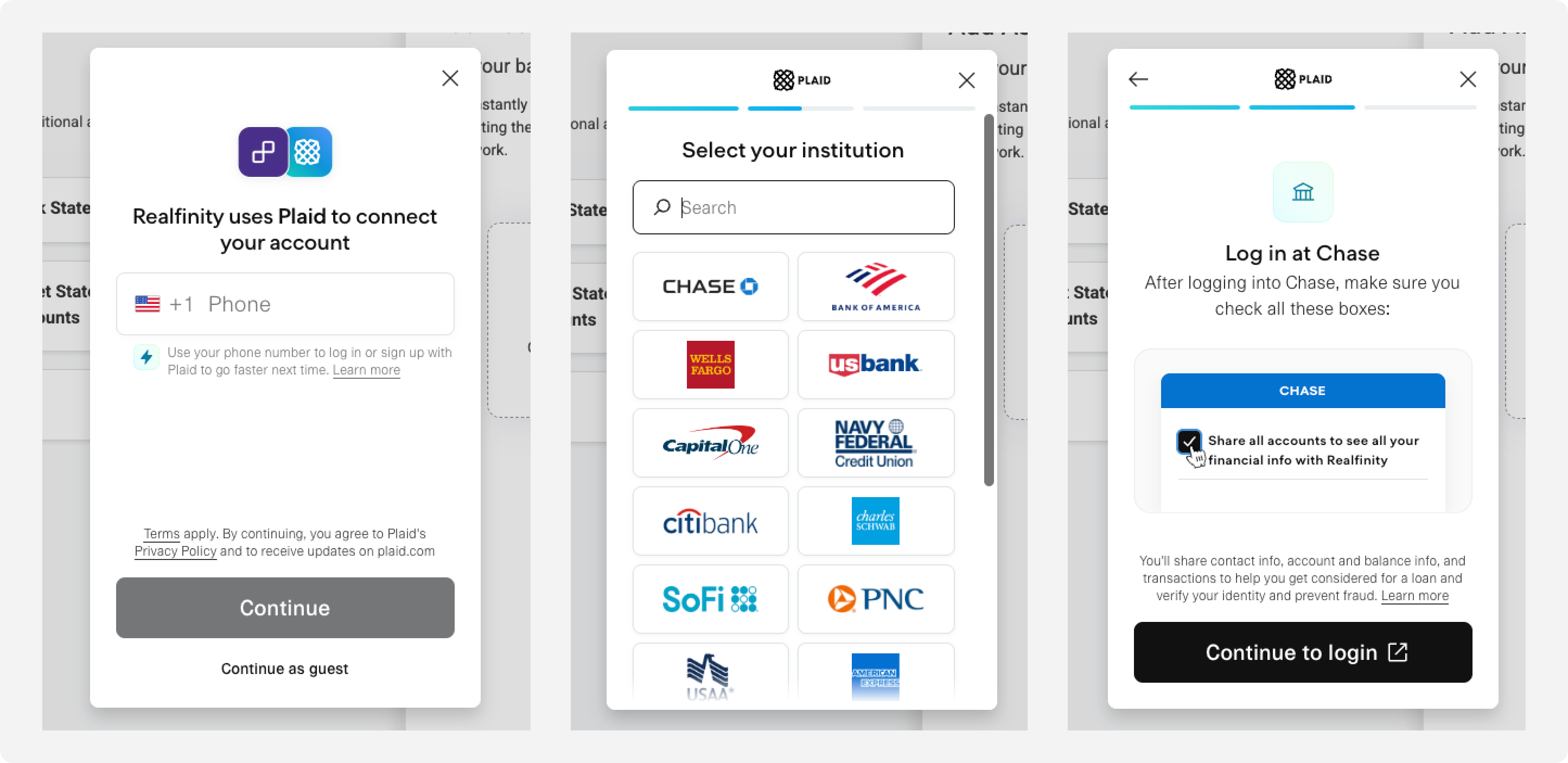
Example of Plaid screens when connecting your accounts. After this screen, you will login through your normal bank portal.

Once an account is linked via Plaid, it will have the Plaid logo next to it in your list of assets. Information from Plaid accounts cannot be edited manually.
Option 2: Add Account Manually
If you prefer not to connect your accounts, you can add them manually.
How to connect:
- Click the "Add Asset" button within one of your requested asset accounts, or add a new asset via the "Add New Asset" button
- Click "Add Asset Manually" to open up the screen to enter your information
- Enter your asset type (if new asset), account/asset name, institution name, current balance, and account number (optional).
- Once you are done, the account will sync with either the asset you clicked from, or create a new asset
View of the manual asset screen, where you enter the information about the asset account.
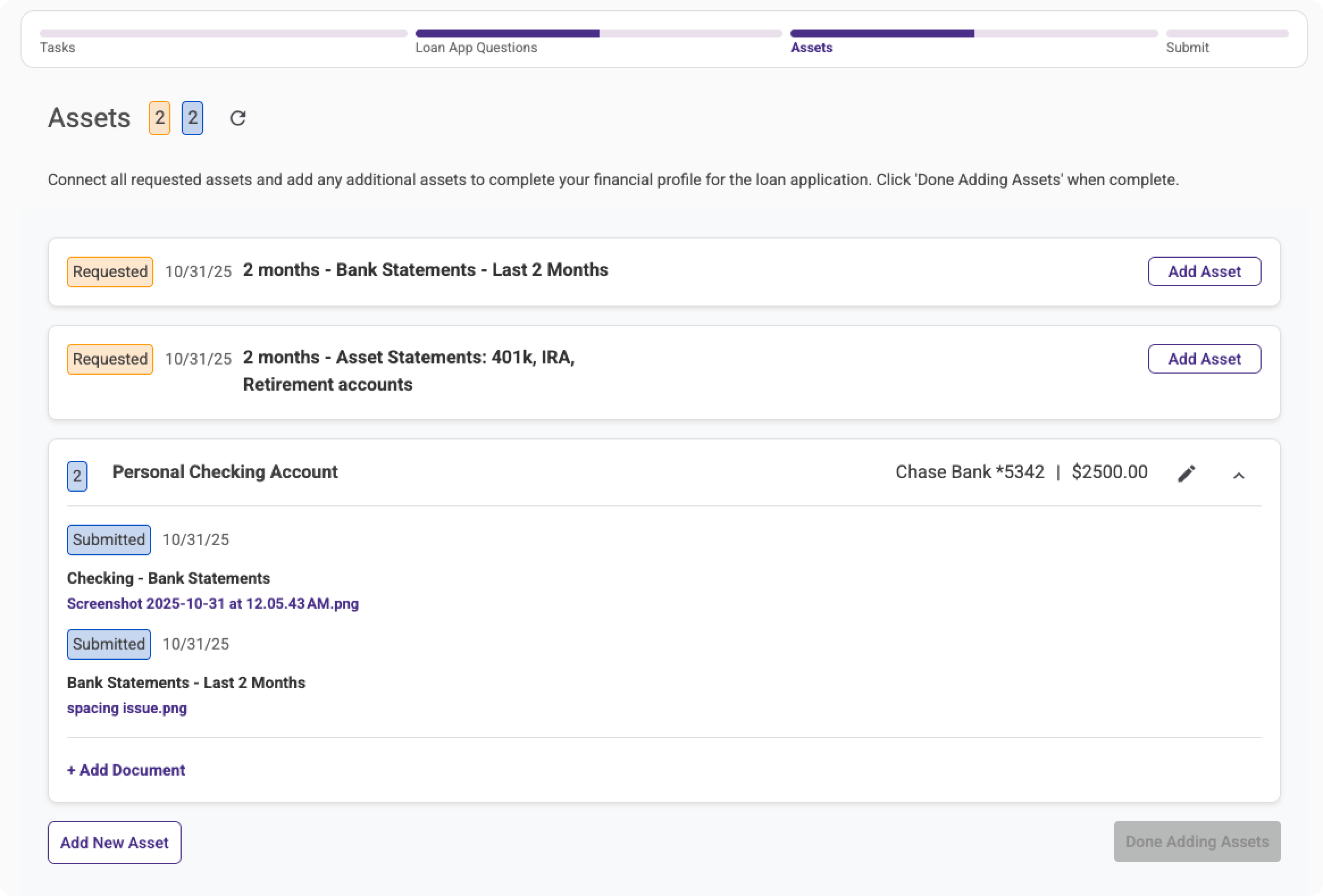
View of the assets page, with the personal checking account (manually added), and 2 documents that were also added through the "Add Document" within the asset container.
----> About documentation
- Uploading documentation (like bank statements) is optional for pre-approval
- However, you will be required to provide documentation later in the process
- Uploading now speeds up your final approval
How to upload documents:
- Click "+ Add Document" for any additional documents or click the "upload" button to add a document for the requested item within your asset
- Select your file (PDF, JPG, or PNG)
- If you want to remove the document, click the "x" next to the name
- You can also upload multiple documents at this stage and they will all be added under this asset
- Click "Add"
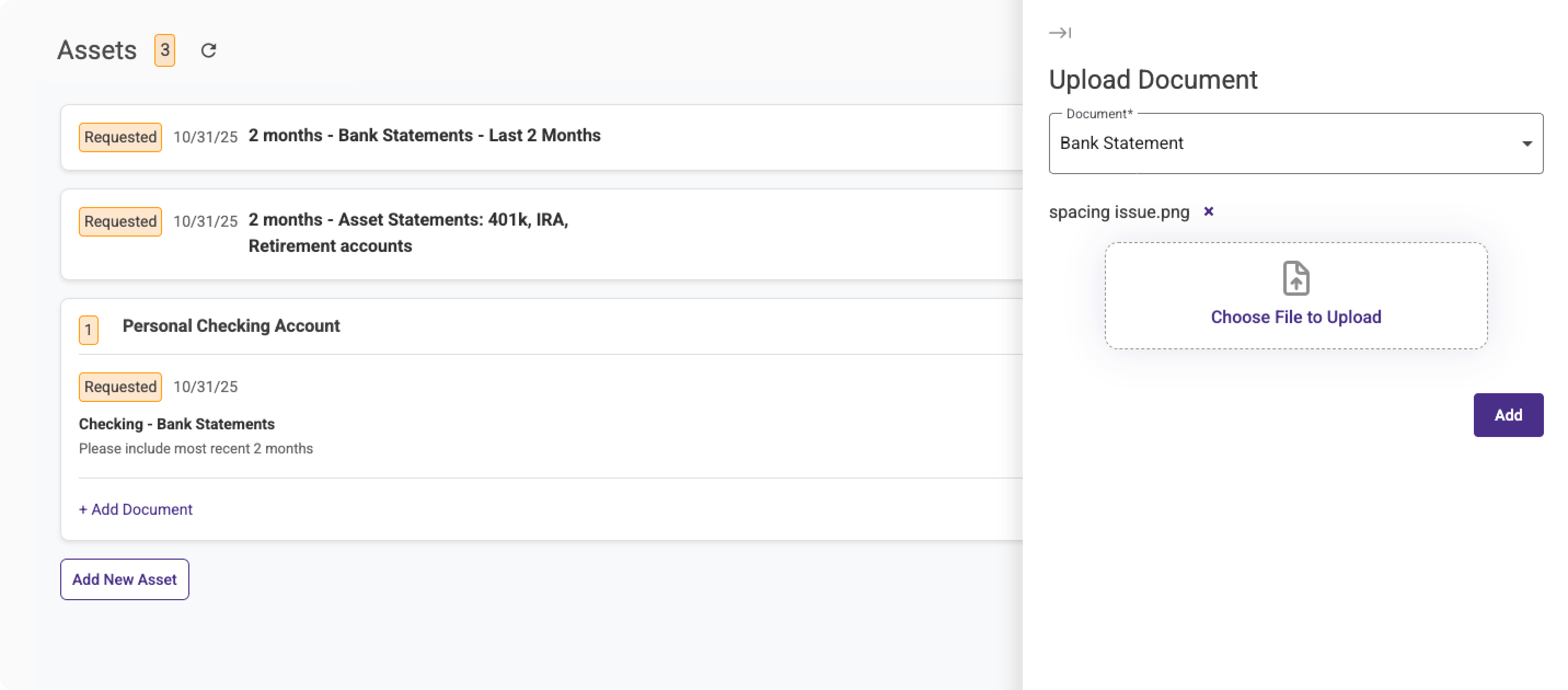
Clicked "Add Document" under the requested item in the "Personal Checking Account" asset.
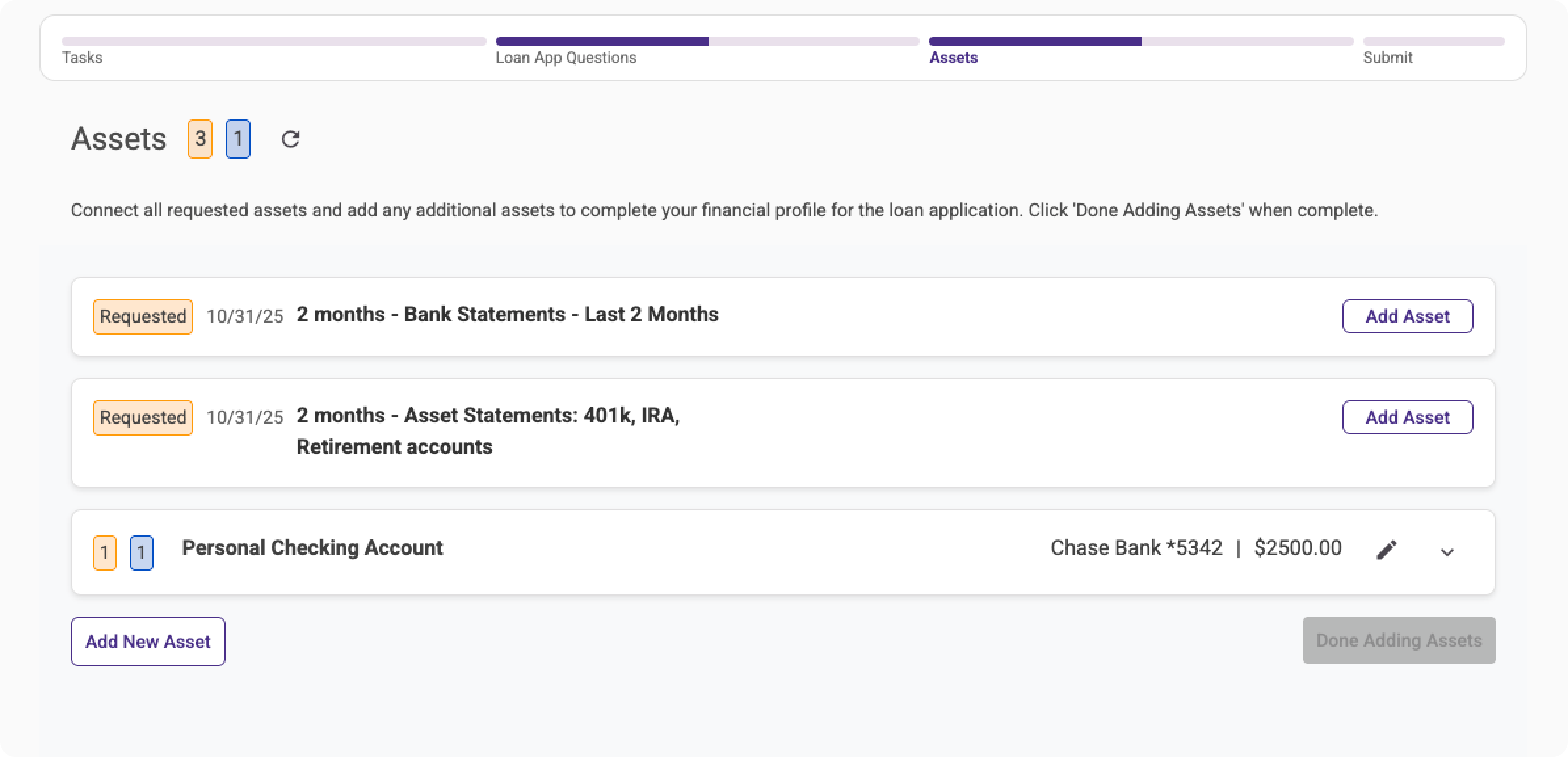
A document was added to that asset, but a different request still exists, so there are two documents within the checking account asset, one is uploaded (blue) and the other requested (yellow).
3. Review and Complete Tasks
Some tasks are required for pre-approval. These are marked with an asterisk (*).
Common required items:
- If you have W-2 Income:
- Upload 2 years of W-2 forms
- Upload recent pay stubs
- If you're self-employed
- Upload 2 years of tax returns
- Upload business documents
- If you're a veteran
- Upload Certificate of Eligibility
- Upload DD-214 form
- If you have a current mortgage
- Upload recent mortgage statements
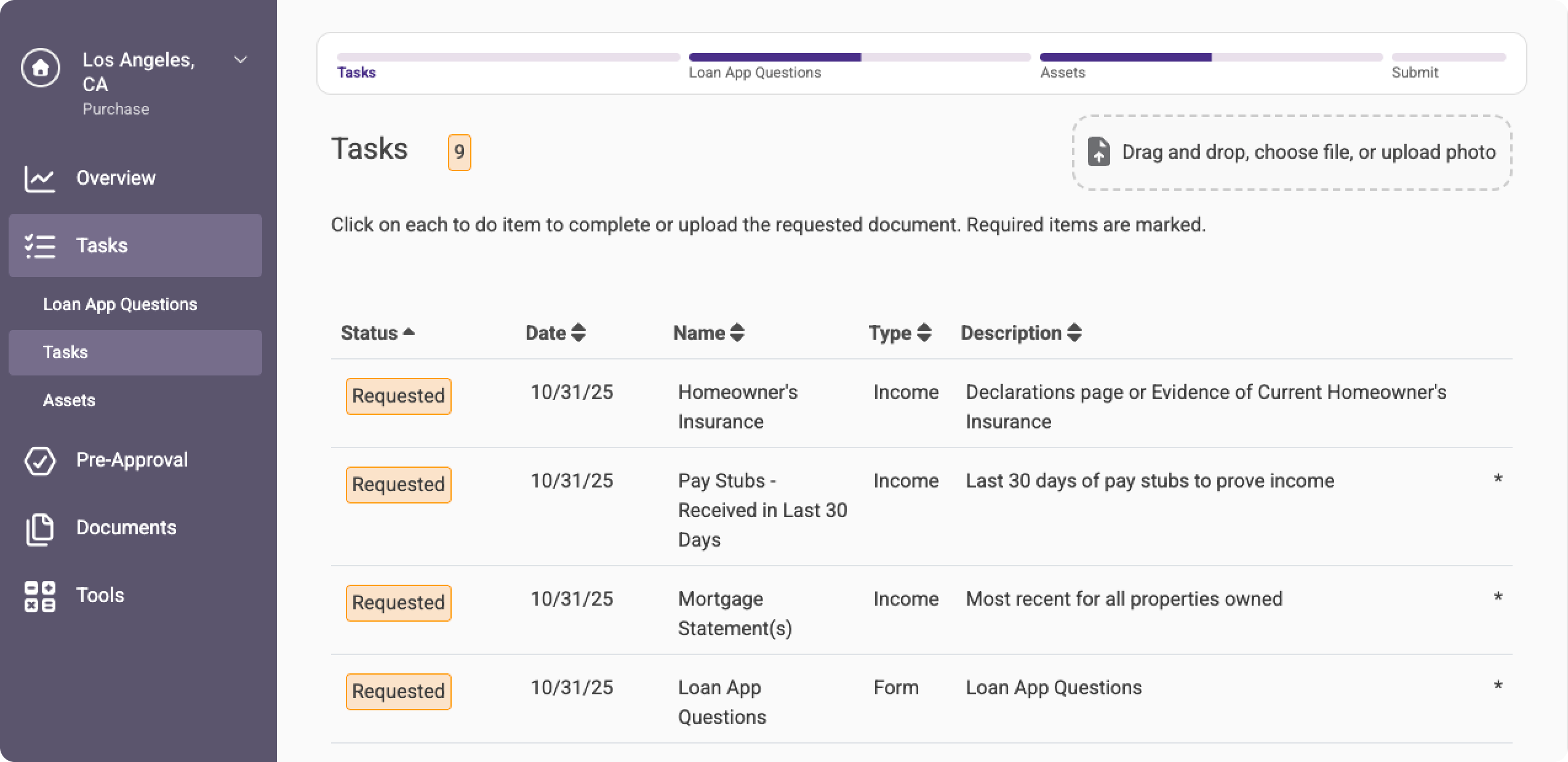
On the Tasks/To-Dos page, a few items are marked as required for the pre-approval submission.
❇️ Submitting Your Application
Once you've completed all three sections, you're ready to submit!
- All required application questions are answered
- At least one asset account is added (but ideally, all accounts for down payment and closing costs)
- All required tasks (marked with *) are completed
Click "Submit Application" within the progress tracker. After submitting, you'll receive a confirmation email.

Once all required items are in, the Submit Application button is active.

Once the loan application is submitted, this is the view of the status tracker (until the verified pre-approval comes back).
Was this article helpful?
That’s Great!
Thank you for your feedback
Sorry! We couldn't be helpful
Thank you for your feedback
Feedback sent
We appreciate your effort and will try to fix the article