We're introducing the first major step toward fully automated pre-approvals with a completely reimagined way for borrowers to share and verify their financial information.
With our latest product release, a few things look a little different for you and your borrowers.
(view the borrower documentation here)
Key Features
❇️ Updated Loan Application Flow
The loan application process has been restructured into a streamlined workflow that ensures complete, submission-ready files from the start.
1. Initial Borrower Questions (Stepper)
- What: Before accessing the full loan application, borrowers (or agents) must complete the initial client questions stepper. This can be completed by the borrower or agent, whoever access it first.
- Why: This upfront information allows the system to determine which documents and tasks are required for each specific loan scenario and streamlines the document request process.
- How to complete: After the loan application is created, as an agent, you can navigate to the Tasks (soon to be named "Loan App Tasks" tab) and click "Complete Questions" to open up the stepper. Once complete, you can view the full Loan App Tasks section to view the loan application and all the assigned tasks/to-dos.
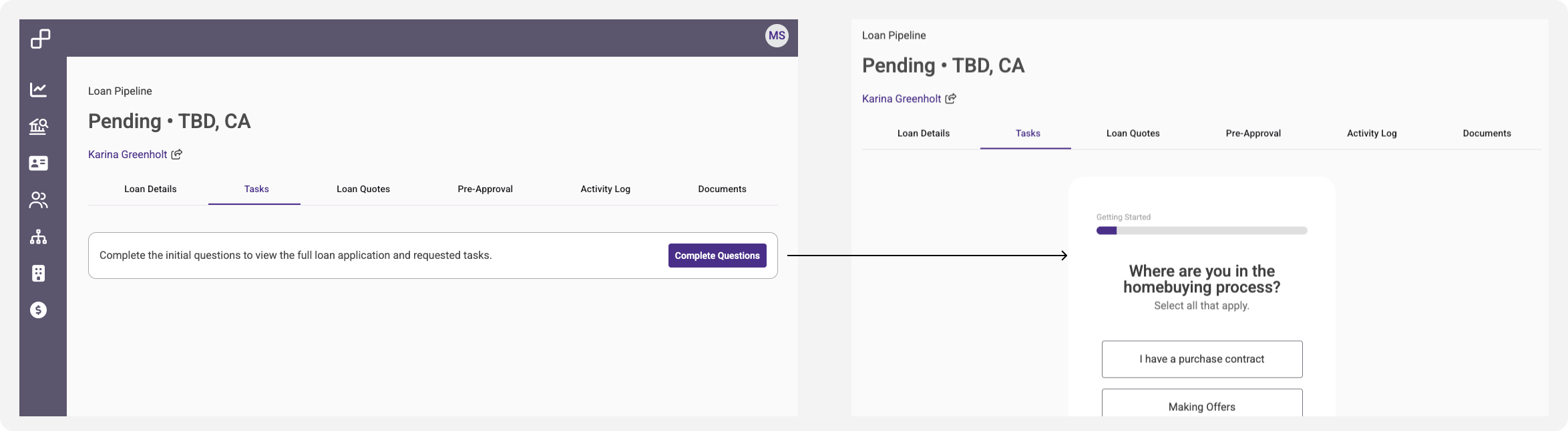
Initial borrower questions that need to be answered in order to view the loan app questions or tasks/to-dos page.
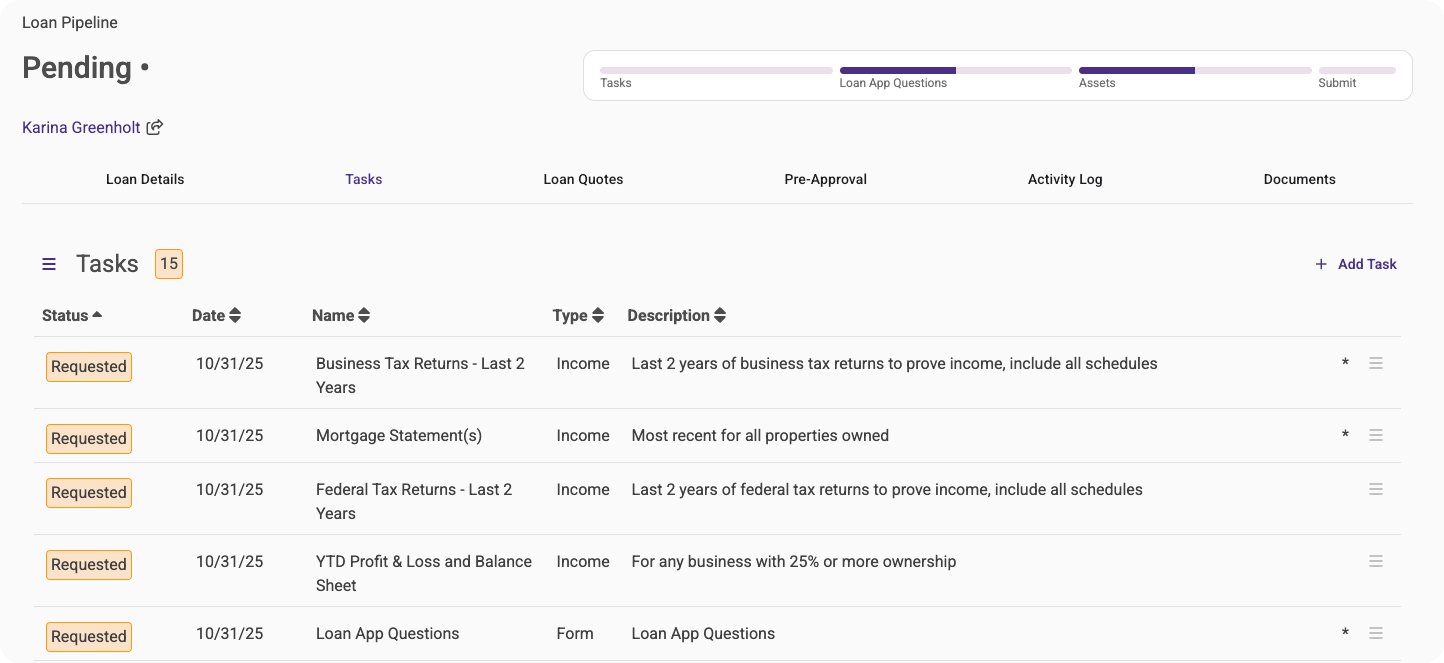
View of the tasks/to-dos page once the initial questions are answered. All documents are automatically requested.
2. Loan App Tasks (Three Sections)
- What: These sections contain the required information before submitting the loan for a verified pre-approval, including:
- To-Dos (Tasks)
- Loan Application Questions
- Assets - NEW
- How to access: As an agent, you can navigate between the three sections of the Loan App Tasks by using the side menu
- These three sections also exist at the top progress tracker, to see what still needs to be completed before submission
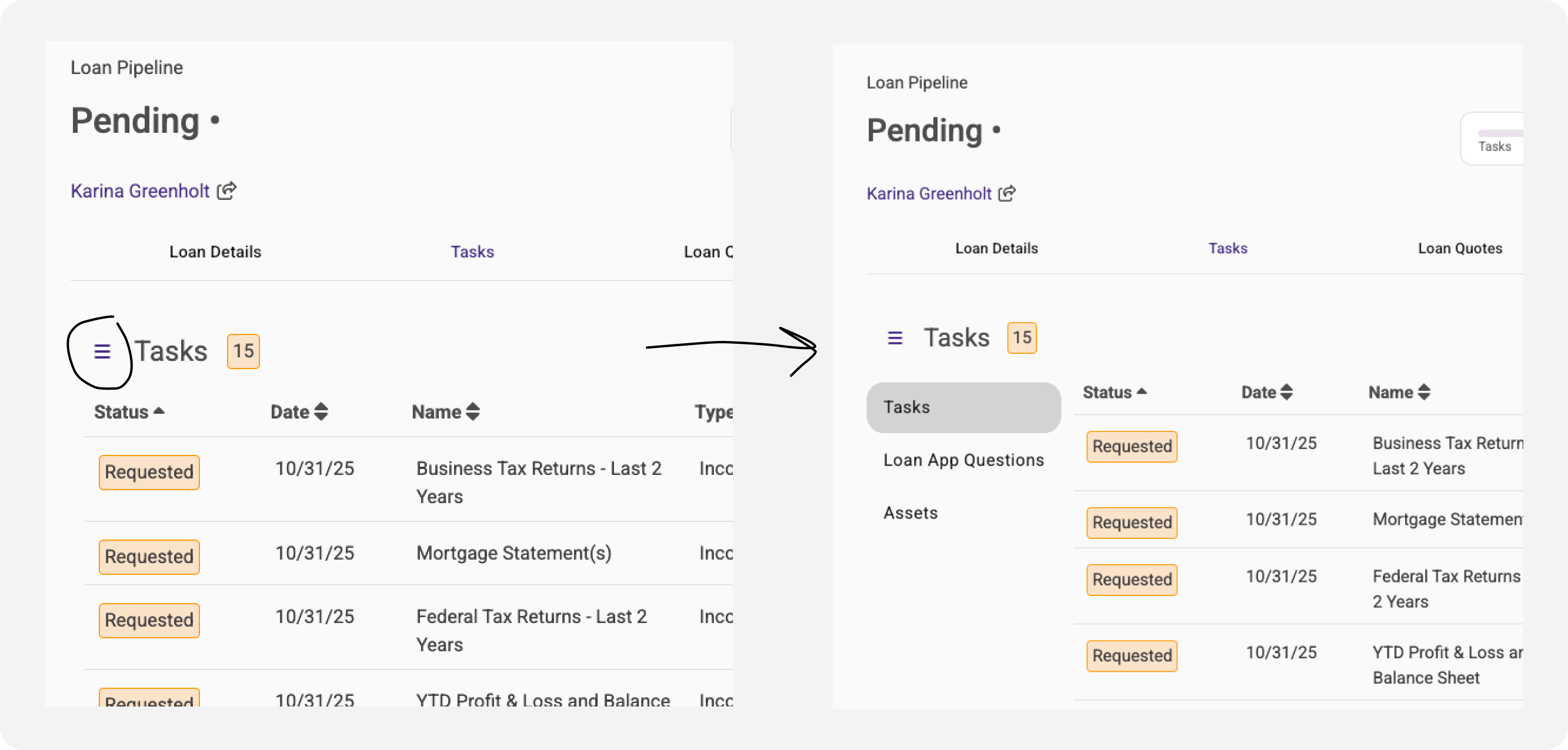
Menu button to expand the navigation on a borrower's loan application tasks.

Status tracker, showing that Loan App Questions and Assets are in progress, and none of the required tasks are complete yet.
3. Submission for Verified Pre-Approval
- What: In order to submit the application to processing (to get a verified pre-approval), the application has to be submitted via the "Submit" button in the top tracker.
- Why: This change requires some additional information before the application is sent over to processing to ensure a more complete review, including at least one asset account, and select required documentation for income or personal info based on the loan scenario.
- How to complete: After all required sections of the loan app tasks are complete, the button will become active and you can submit this.

Status tracker, showing the submit application button that active - all required items are complete for the verified pre-approval.
❇️ Unified Assets View
All assets and asset documentation exists on a unified view.
- Assets no longer exist within the loan application, so borrowers or agents can add new assets via the "Add New Asset" button. Borrowers can choose whether to link via a secure Plaid connection, or they can add an asset account manually.
- If an asset is added manually, documentation can be added when entering information or at a later time. It is not required to have documentation for a manually added asset for a pre-approval, though the processing team will require documentation at some point to validate the assets.
- Plaid assets cannot be edited since the information is coming from the bank direcly, but you can add additional manual documentation to the asset account.
- You can add an asset task from the Assets page or from the Tasks page - this will then show up as an asset request for the borrower to add.
- It is required to have at least one asset account before the borrower can click "done adding assets"
- Clicking "done adding assets" will complete the assets verification task on the To-Dos/Task Page
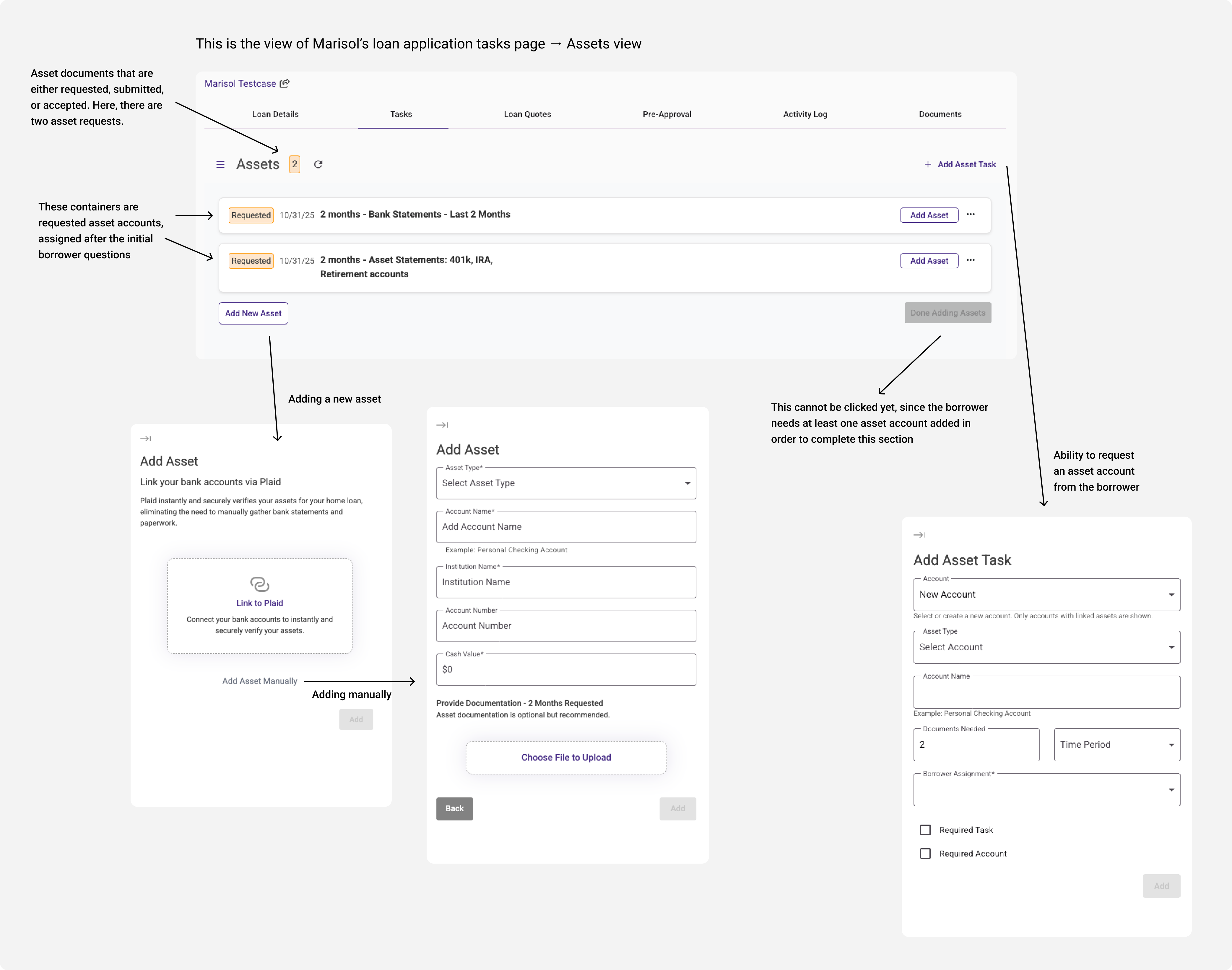
Overview of the assets view, including adding an asset task, adding a new asset, or adding an asset to a requested item.
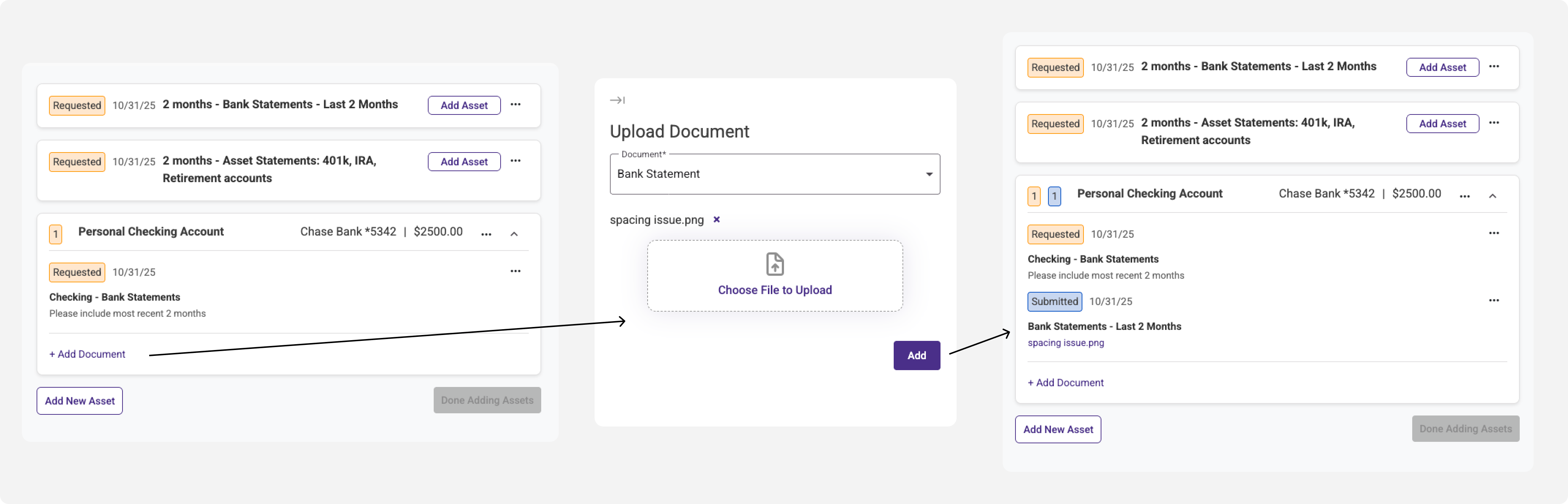
View of adding a document to an existing asset account.
❇️ Required Tasks Before Submission for Verified Pre-Approval
- Required documents will have an asterisk to show the borrower that it is required
- If you want to mark it as "not required," you can edit the task or asset to change that designation.
- When creating a new task, you can mark it as required for pre-approval.
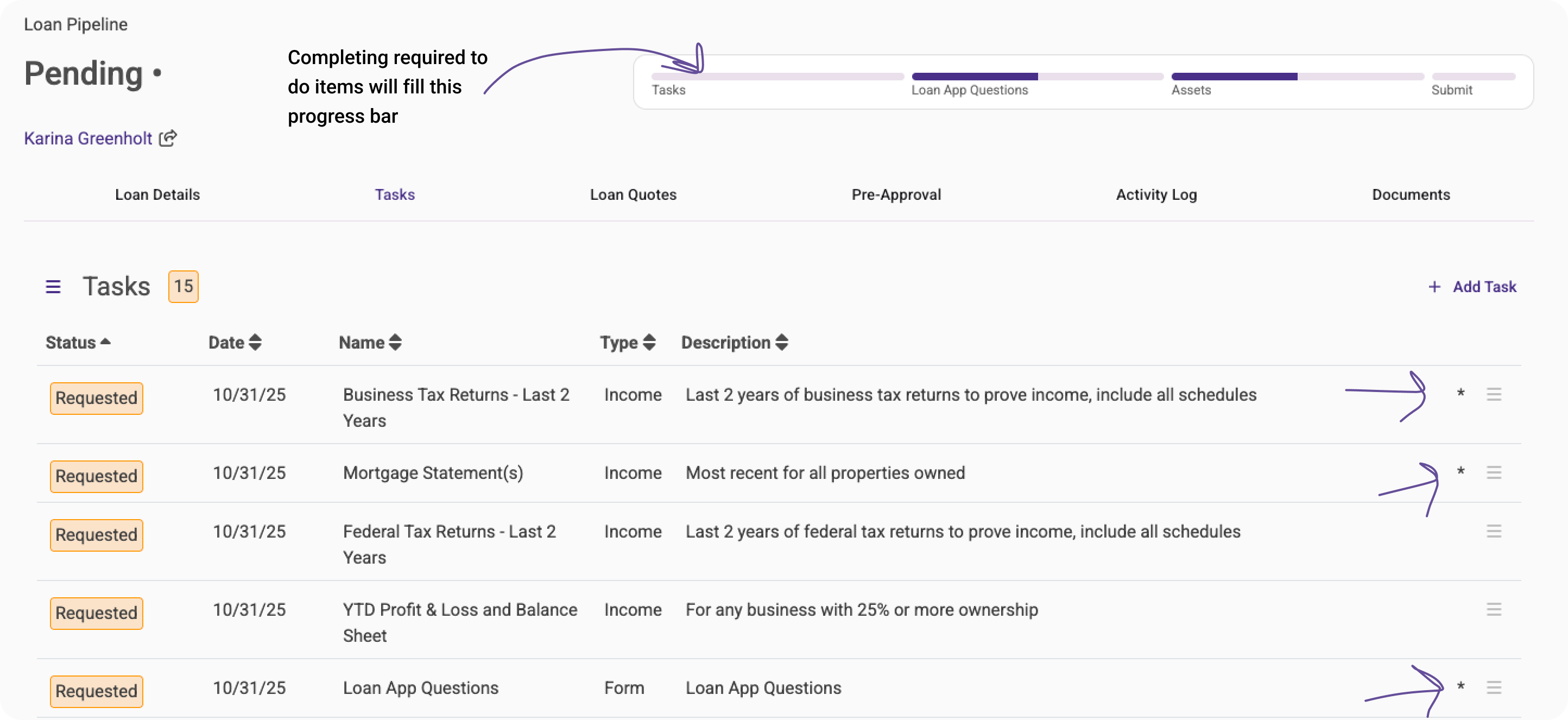
An example of a client's tasks/to-do page that shows required items. These are required based on the borrower's answers in the initial borrower questions and their loan circumstance. Not every task is required.
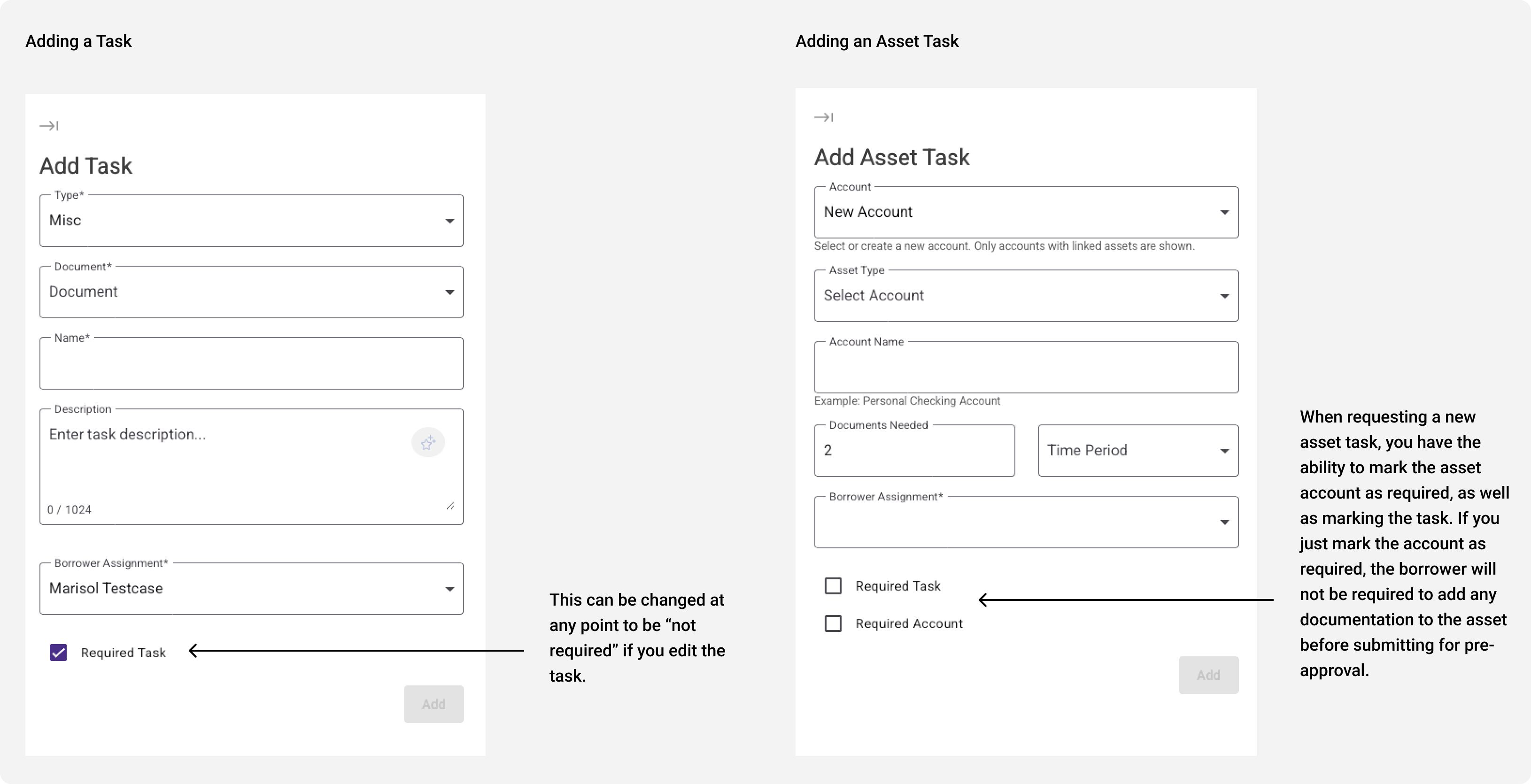
Screens that show the new "required task" checkbox when creating a new task or an asset task. Asset accounts can be marked as required, as well as their nested tasks.
Was this article helpful?
That’s Great!
Thank you for your feedback
Sorry! We couldn't be helpful
Thank you for your feedback
Feedback sent
We appreciate your effort and will try to fix the article